


Commissioner Posts
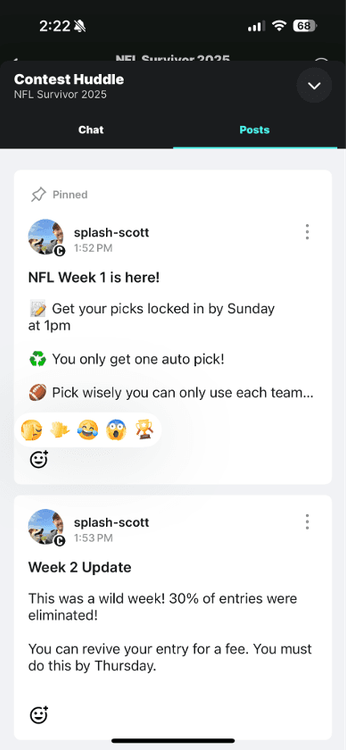
We’ve released a new way for Commissioners to communicate with their entrants. Use Posts to communicate important updates to your entrants and share weekly recaps about your contest. This is a great way to keep your entrants engaged!
Commissioner Posts are currently only available on the iOS or Android App. We plan to bring this to desktop users soon. Download the latest version of the iOS or Android App to check it out.
Here’s the quick TLDR for Commissioner Posts:
- Posts are a one way communication tool: Commissioner → Entrants
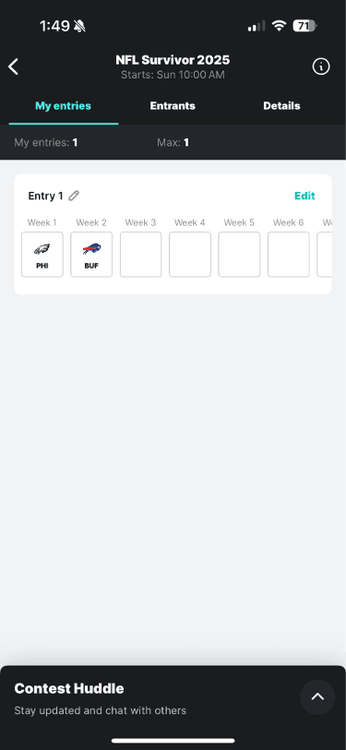
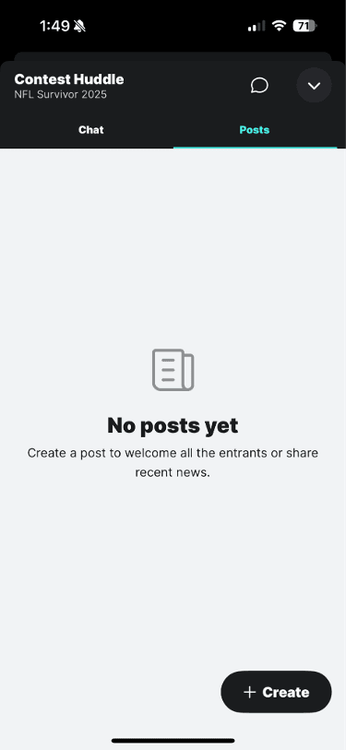
- Posts are located inside the chat drawer of your contest Gamecenter, this drawer is now called “Contest Huddle”.
- You can notify all entrants in your contest when making a post. When you enable notifications, all entrants will receive an email notification.
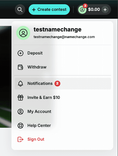
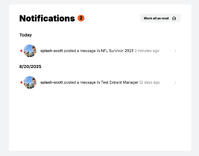
- Users on Desktop can read Commissioner Posts. They are available inside the notification center.
- Commissioner Posts must be made from the iOS or Android App.
Creating a Post
1) Head to the contest and open the “Contest Huddle” Drawer then go to the “Posts” Tab.
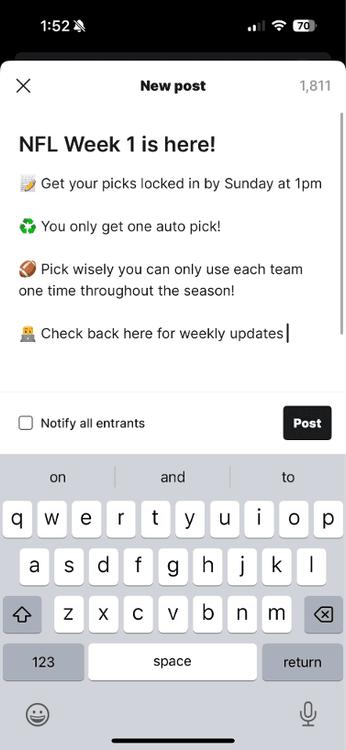
2) Enter a Header and a Body for your post. You have up to 2000 characters.
3) Check the “Notify all entrants” if you want everyone to get an email notification.
4) Make your post!
Deleting, Editing, or Pinning Posts
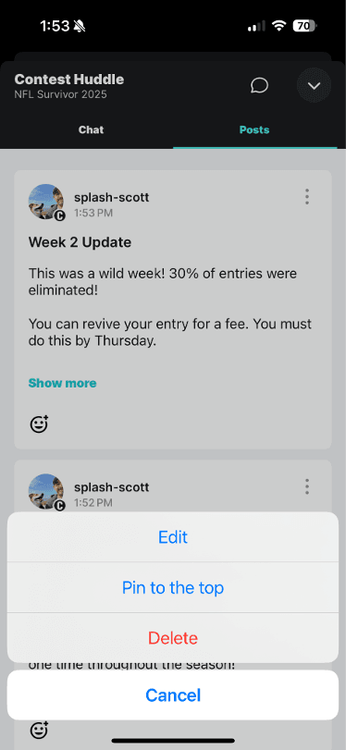
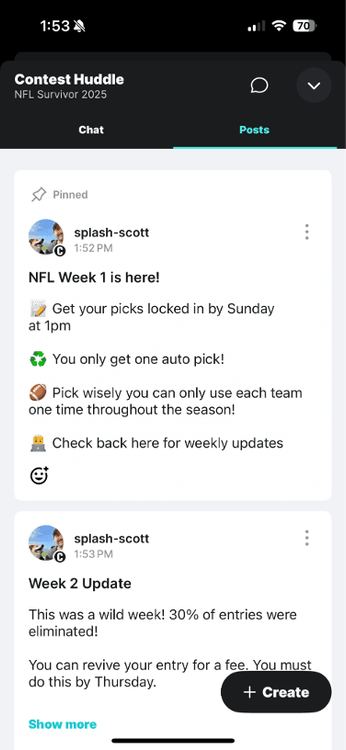
After you create a post you can Delete, Edit, or Pin it by clicking the “…” icon at the top right corner of the post.
1) Deleting will fully delete the Post but users will still get the notification if that was enabled
2) Editing will allow you to edit the Post. At this time, users will not get a new notification with the edited post.
3) Pinning will make sure the Post is pinned at the top so you can make sure users read the most important post first.
Viewing Post Notifications on the App
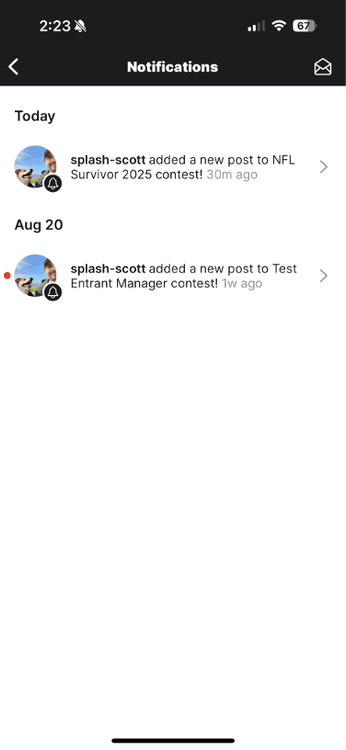
1) Users will get a notification inside the notification center (plus an email if the commissioner opted into notifying)
2) Clicking this notification will take them to the GameCenter for the contest.
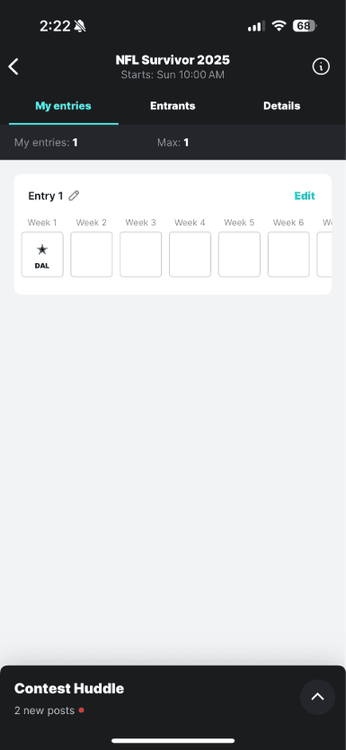
3) The user will see a notification icon on the contest huddle drawer.
4) Just open the Contest Huddle drawer to read and react.
Viewing Post Notifications on Desktop/Web
Live Chat and Commissioner Posts are not available on Desktop (Coming soon!). However, users can view Commissioner Posts on Desktop.
1) Post notifications will be available in the notification center
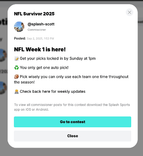
2) Clicking on the Post notification on desktop will open a modal where the user can read the full Commissioner Post